This page covers registering and managing keys in the dashboard. For how the SDK signs and uses JWTs — including per-request sponsorship policies — see JWT authentication.
Registering a key
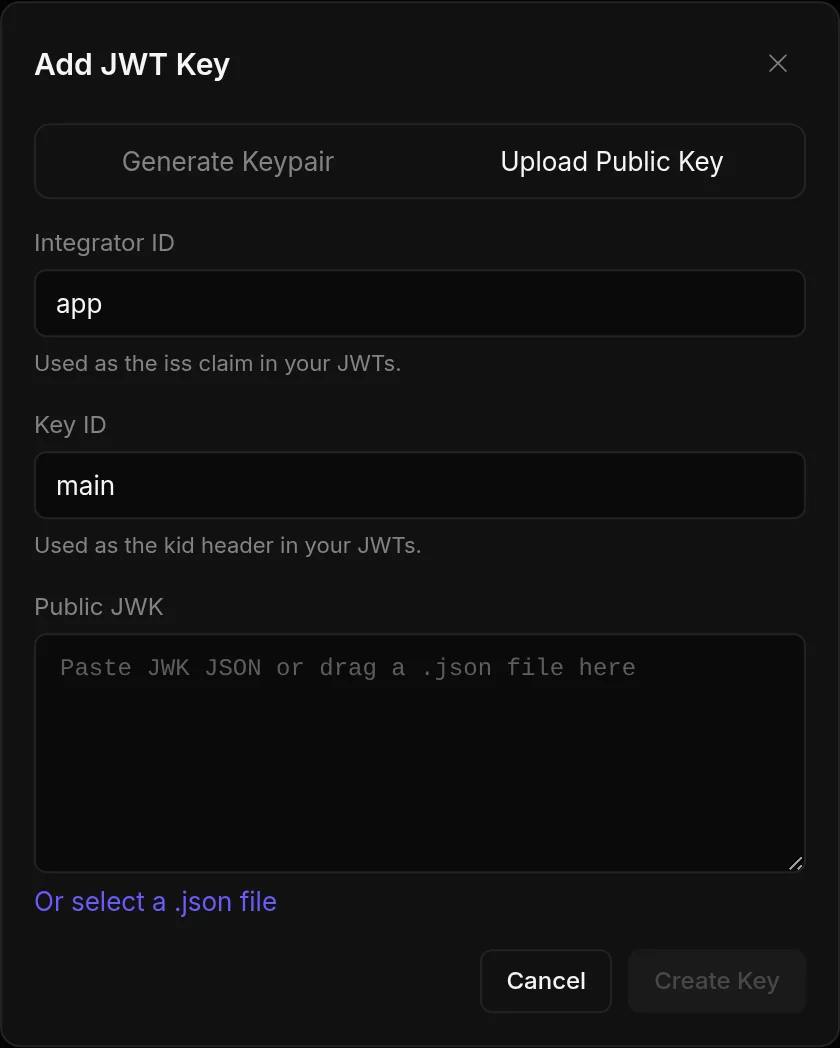
Press “Register key”. You can either generate a keypair in your browser or upload a public key you already have.- Generate a keypair
- Upload a public key
The dashboard generates a keypair in your browser. Only the public key is sent to Rhinestone — the private key never leaves your machine.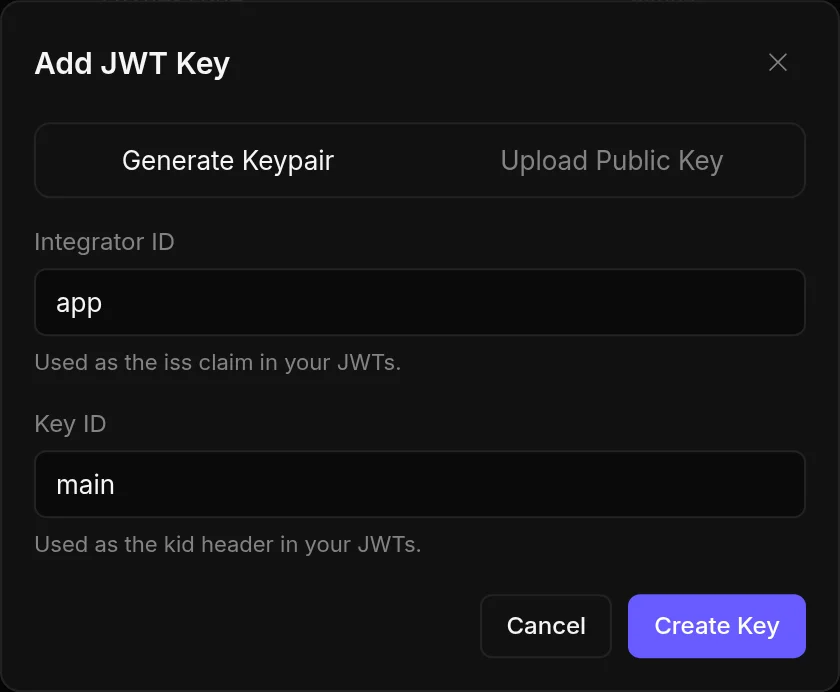
1
Fill in the form
- Integrator ID — your organisation’s identifier, emitted as the
issclaim in the JWTs you sign. Typically your service’s name. - Key ID — identifier for this specific key, emitted as the
kidheader. Use a stable name you can rotate later (e.g.prod-2026-06).
2
Download the private key
Download the private key file and store it securely on your backend.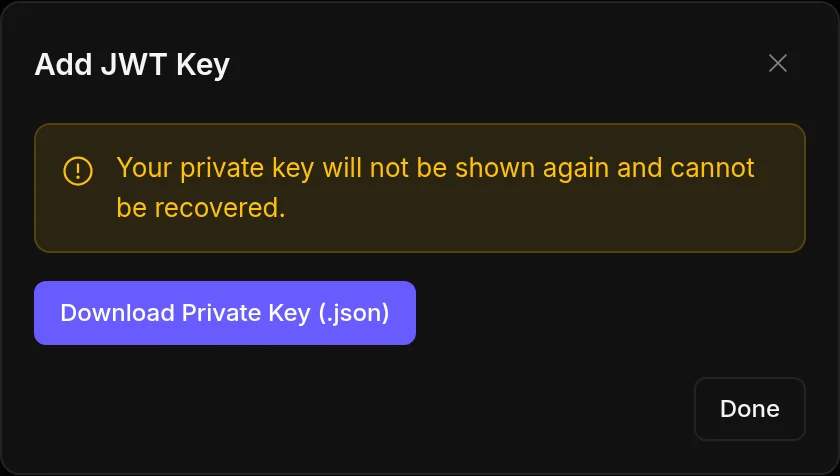
Rotating keys
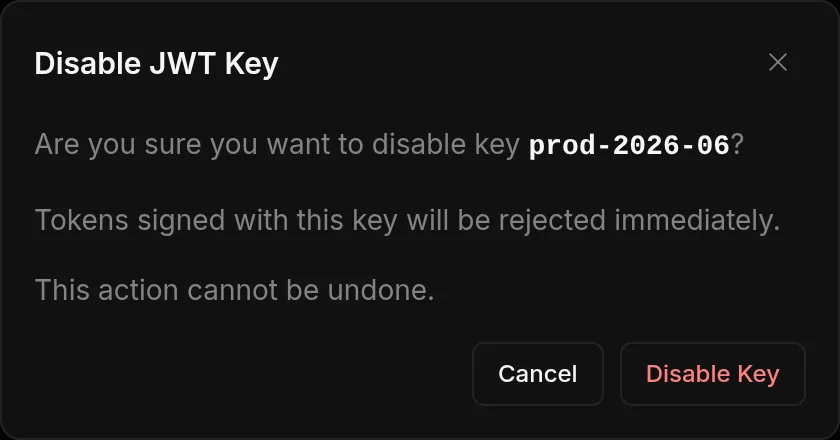
Register a new key with a new Key ID and start signing tokens with it. Tokens signed under the oldkid keep verifying until they expire, so there’s no coordinated client deploy and no revocation race. Disable the old key once nothing signs with it.
Disabling a key
Open the key and press “Disable”.