> ## Documentation Index
> Fetch the complete documentation index at: https://docs.rhinestone.dev/llms.txt
> Use this file to discover all available pages before exploring further.
# JWT keys
> Register a signing key so your backend can issue JWTs
JWT authentication lets your backend mint short-lived tokens instead of using a long-lived API key. Before you can issue JWTs, you register a **public signing key** with Rhinestone from the [Dashboard](https://dashboard.rhinestone.dev) under **API keys → JWT keys**.
This page covers registering and managing keys in the dashboard. For how the SDK signs and uses JWTs — including per-request sponsorship policies — see [JWT authentication](/intents/configuration/jwt-authentication).
## Registering a key
Press "Register key". You can either generate a keypair in your browser or upload a public key you already have.
The dashboard generates a keypair in your browser. Only the public key is sent to Rhinestone — the private key never leaves your machine.
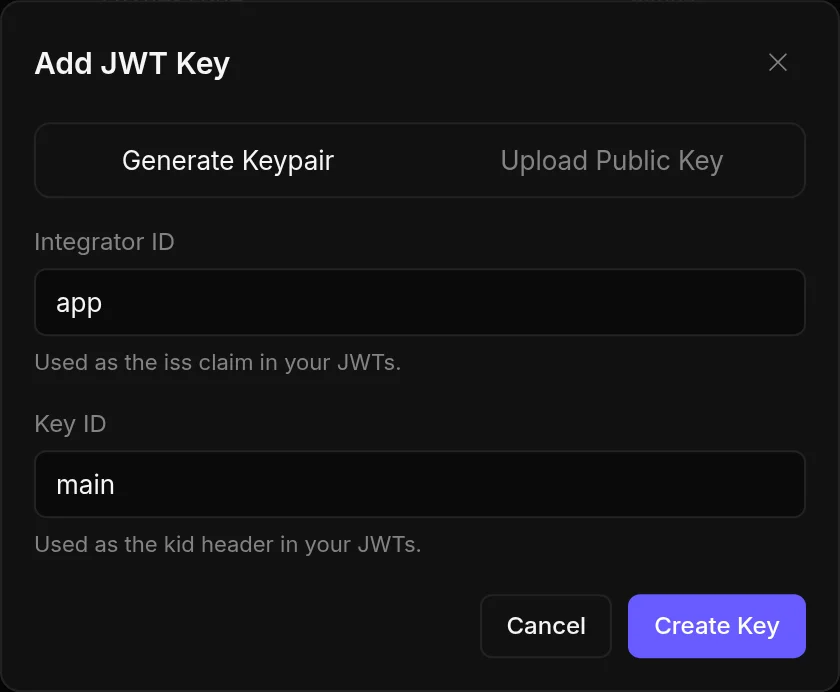 * **Integrator ID** — your organisation's identifier, emitted as the `iss` claim in the JWTs you sign. Typically your service's name.
* **Key ID** — identifier for this specific key, emitted as the `kid` header. Use a stable name you can rotate later (e.g. `prod-2026-06`).
Press "Create Key".
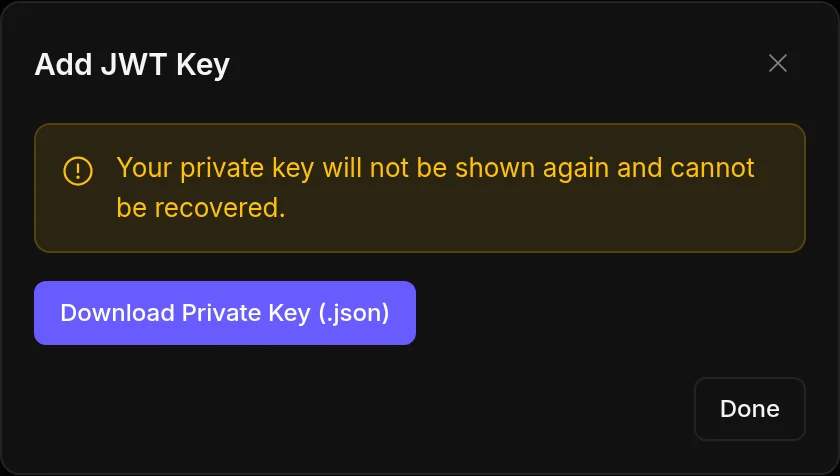
Download the private key file and store it securely on your backend.
* **Integrator ID** — your organisation's identifier, emitted as the `iss` claim in the JWTs you sign. Typically your service's name.
* **Key ID** — identifier for this specific key, emitted as the `kid` header. Use a stable name you can rotate later (e.g. `prod-2026-06`).
Press "Create Key".
Download the private key file and store it securely on your backend.
 If you already generated a keypair yourself, upload just the public half as a JWK.
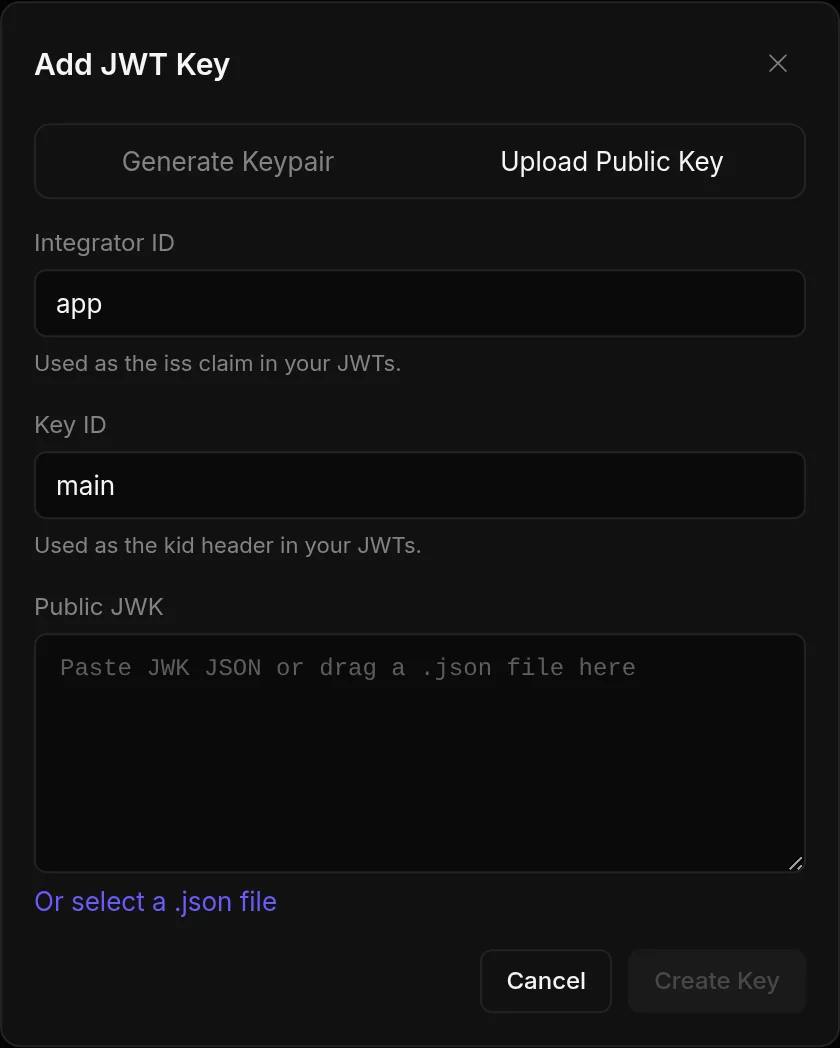 * **Integrator ID** — emitted as the `iss` claim (see above).
* **Key ID** — emitted as the `kid` header (see above).
* **Public JWK** — paste the JWK JSON, or drag in a `.json` file.
Supported key types are RSA and EC (curve P-256). Only the **public** key is accepted — uploads containing a private key parameter are rejected.
Once registered, the key shows as **active** in the list, with its Key ID and Integrator ID.
## Rotating keys
Register a new key with a new Key ID and start signing tokens with it. Tokens signed under the old `kid` keep verifying until they expire, so there's no coordinated client deploy and no revocation race. Disable the old key once nothing signs with it.
## Disabling a key
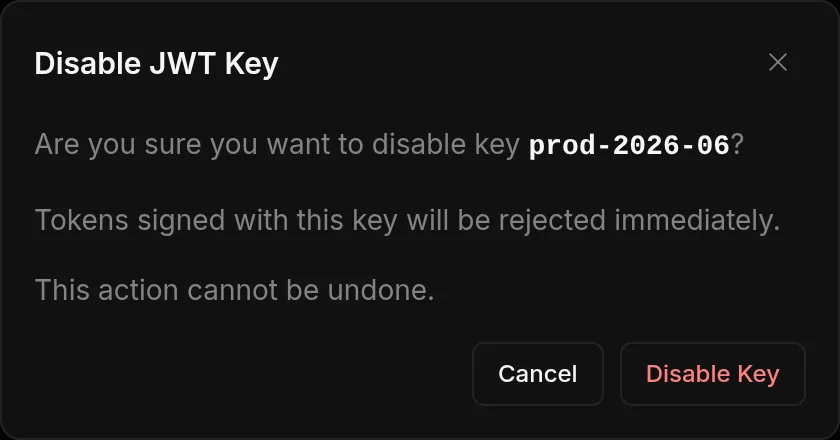
Open the key and press "Disable".
* **Integrator ID** — emitted as the `iss` claim (see above).
* **Key ID** — emitted as the `kid` header (see above).
* **Public JWK** — paste the JWK JSON, or drag in a `.json` file.
Supported key types are RSA and EC (curve P-256). Only the **public** key is accepted — uploads containing a private key parameter are rejected.
Once registered, the key shows as **active** in the list, with its Key ID and Integrator ID.
## Rotating keys
Register a new key with a new Key ID and start signing tokens with it. Tokens signed under the old `kid` keep verifying until they expire, so there's no coordinated client deploy and no revocation race. Disable the old key once nothing signs with it.
## Disabling a key
Open the key and press "Disable".