> ## Documentation Index
> Fetch the complete documentation index at: https://docs.rhinestone.dev/llms.txt
> Use this file to discover all available pages before exploring further.
# API keys
> Create, scope, rotate, and revoke API keys
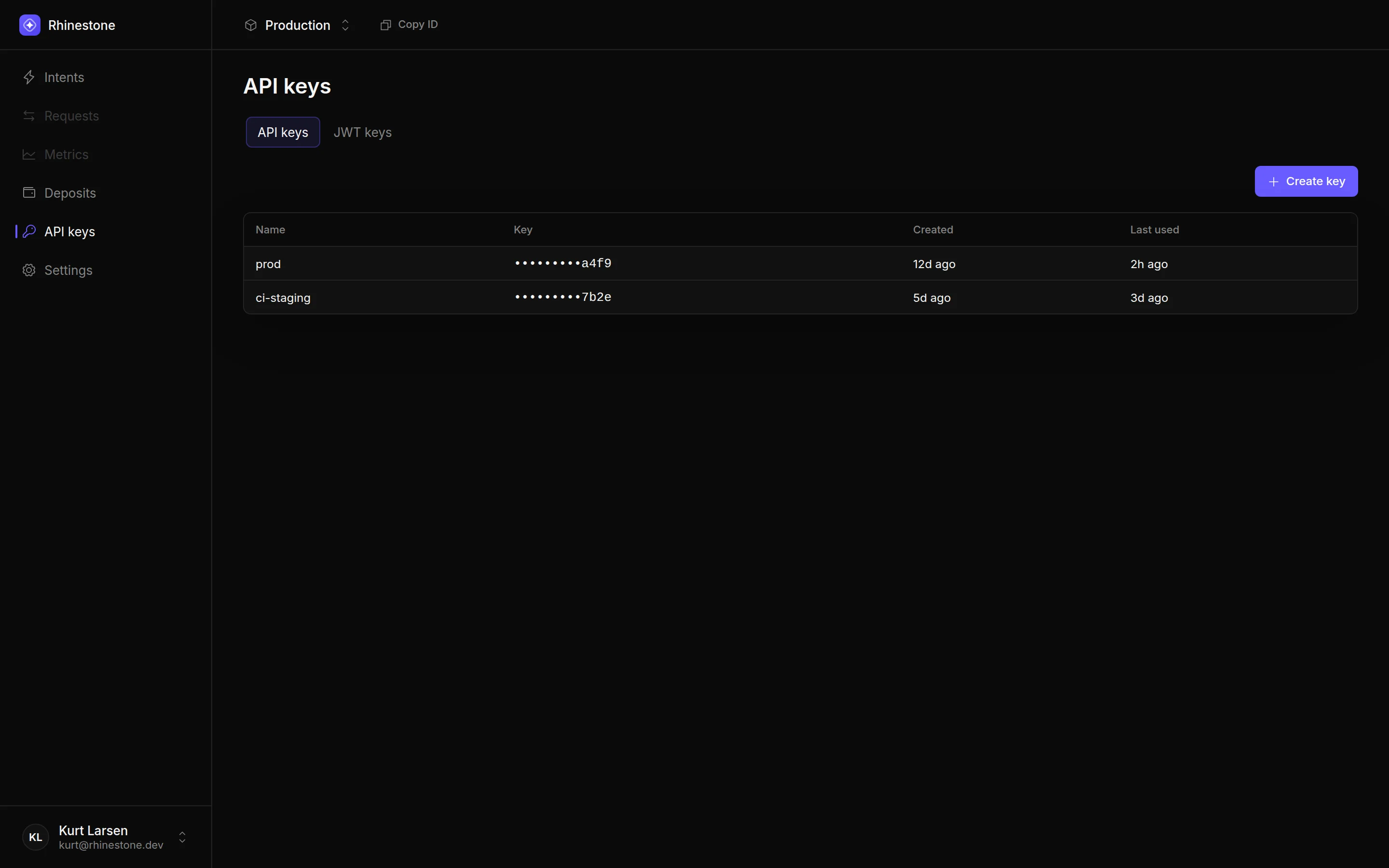
API keys authenticate your integration's requests to Rhinestone. They're managed per-project from the [Dashboard](https://dashboard.rhinestone.dev) under **API keys**.
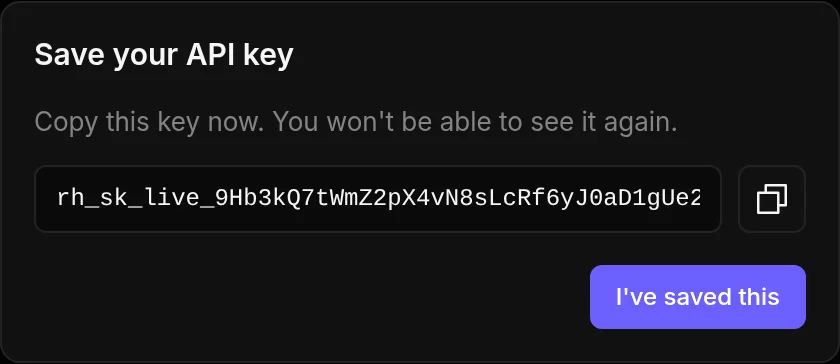
An API key is shown in full **once**, at creation. Store it somewhere safe — you can't view it again.
## Creating a key
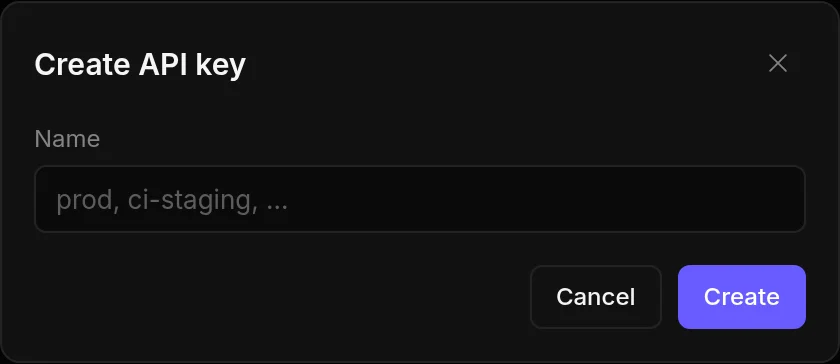
 Give the key a name you'll recognise later (e.g. `prod`, `ci-staging`). Press "Create".
 The full key is shown once. Copy it and store it securely, then press "I've saved this".
 A project can have up to 10 active keys at a time.
## Scoping a key
By default a key is unrestricted. Open a key from the list to narrow what it can do under **Scopes**. There are three independent controls:
A project can have up to 10 active keys at a time.
## Scoping a key
By default a key is unrestricted. Open a key from the list to narrow what it can do under **Scopes**. There are three independent controls:
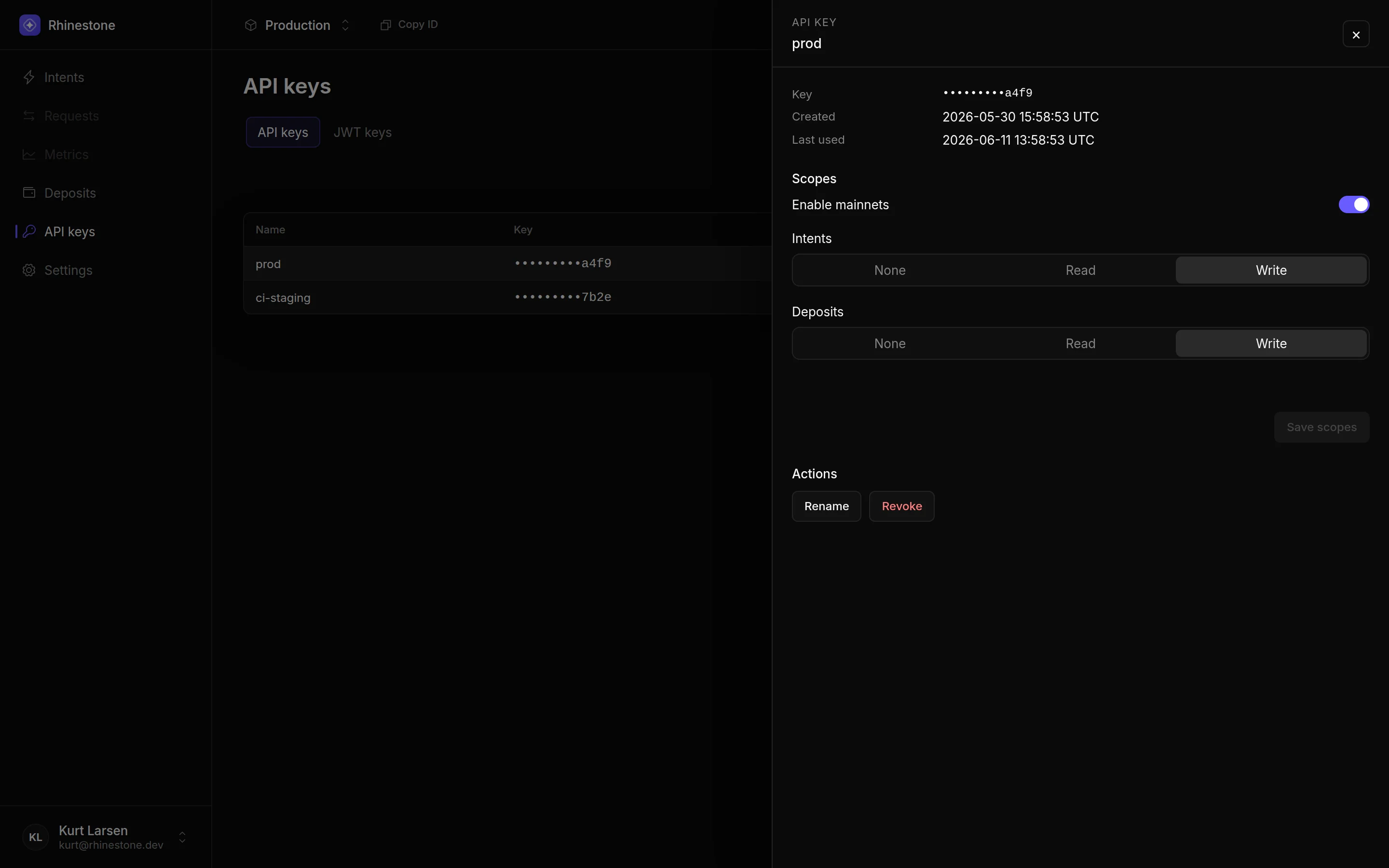 * **Enable mainnets** — when off, the key can only target testnets; mainnet requests are rejected. On by default.
* **Intents** — `None` blocks all intent endpoints, `Read` allows quotes, status, and listing, `Write` also allows submitting intents. `Write` by default.
* **Deposits** — `None` blocks all deposit endpoints, `Read` allows balance and history, `Write` also allows mutations. `Write` by default.
Adjust the controls and press "Save scopes". Only Owners and Admins can edit scopes.
## Rotating a key
There's no in-place rotation — you rotate by creating a new key and revoking the old one:
1. Create a new key (above) and deploy it to your service.
2. Once traffic is flowing on the new key, [revoke](#revoking-a-key) the old one.
Creating the new key first means there's no downtime: both keys are valid during the overlap.
## Renaming a key
Open a key from the list and press "Rename". Renaming is cosmetic — it doesn't change the key's value.
## Revoking a key
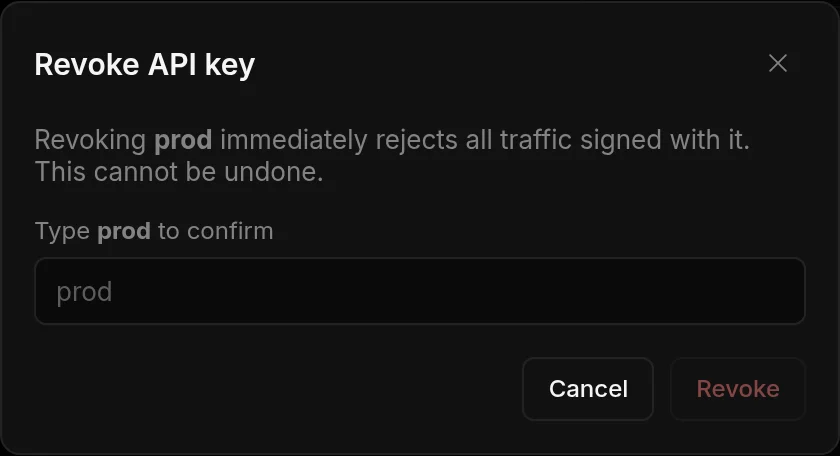
Open the key and press "Revoke". You'll be asked to type the key's name to confirm.
* **Enable mainnets** — when off, the key can only target testnets; mainnet requests are rejected. On by default.
* **Intents** — `None` blocks all intent endpoints, `Read` allows quotes, status, and listing, `Write` also allows submitting intents. `Write` by default.
* **Deposits** — `None` blocks all deposit endpoints, `Read` allows balance and history, `Write` also allows mutations. `Write` by default.
Adjust the controls and press "Save scopes". Only Owners and Admins can edit scopes.
## Rotating a key
There's no in-place rotation — you rotate by creating a new key and revoking the old one:
1. Create a new key (above) and deploy it to your service.
2. Once traffic is flowing on the new key, [revoke](#revoking-a-key) the old one.
Creating the new key first means there's no downtime: both keys are valid during the overlap.
## Renaming a key
Open a key from the list and press "Rename". Renaming is cosmetic — it doesn't change the key's value.
## Revoking a key
Open the key and press "Revoke". You'll be asked to type the key's name to confirm.
 ## Alternatives
If you need short-lived credentials, per-request sponsorship policies, or rotation without redeploying clients, consider [JWT authentication](/dashboard/jwt-keys) instead.
## Alternatives
If you need short-lived credentials, per-request sponsorship policies, or rotation without redeploying clients, consider [JWT authentication](/dashboard/jwt-keys) instead.